Dashboard and monitoring — portal, scrape, graph
Done: Prometheus scrapes itself on a lab-only bind, one nonsense target is down, and Grafana can graph the up series.
Requirements
Rebuild the scrape and the graphs on a lab guest or a workstation. The portal is a separate map of names. It is not this install.
- Hardware — one Linux guest or workstation with Docker Engine and Compose
- OS — Debian or Ubuntu with
dockerand the Compose plugin - Hostname rule —
prometheus.example.lab,grafana.example.lab, andhome.example.lab. Changeexample.labto your zone. Put the names on lab DNS, not public DNS. - DNS — lab resolver you control. For the disposable prove on this machine, loopback is enough.
- Packages — Docker Engine, Compose plugin, images in the table below
| Service | Port | Protocol | Notes |
|---|---|---|---|
| Prometheus | 9090 | TCP | UI and self-scrape. Bind to loopback or the lab proxy. |
| Grafana | 3000 | TCP | UI. Admin password from a mode-600 env file. |
| Image | Tag | Notes |
|---|---|---|
prom/prometheus |
v2.54.1 |
Pin a version. Do not follow latest for a rebuild you want to repeat. |
grafana/grafana |
11.2.0 |
Same rule. |
| Name | Change | Use |
|---|---|---|
prometheus.example.lab |
the zone | Prometheus UI behind the lab proxy |
grafana.example.lab |
the zone | Grafana UI behind the lab proxy |
home.example.lab |
the zone | Portal later. Not this procedure. |
no-such-host.example.lab |
keep as a name that must not answer | The down target |
Procedure
Step 1 — Set the names
This prove binds loopback so the admin UIs are not published. Lab DNS and the proxy come after the scrape is honest.
-
Confirm Docker Engine and the Compose plugin. The hyphenated
docker-composebinary is a different tool. This page usesdocker compose.docker --version docker compose versionExpected: Docker 24 or newer, Compose v2 or newer.
Docker version 24.x.x Docker Compose version v2.x.x -
Choose a lab zone. This page uses
example.lab. Change it if your zone differs. -
Record three names:
prometheus.<zone>,grafana.<zone>, andhome.<zone>. For this prove you will not put them in DNS yet. -
Leave
home.<zone>for Next. The portal is a map of links. It is not this install.
Step 2 — Write the env file
Grafana reads the admin user and password from this file at start. Keep the password out of compose.yaml.
-
Create the working directory and enter it.
mkdir -p "$HOME/lab-dash" cd "$HOME/lab-dash" -
Set umask 077 so the next file is created mode 600.
umask 077 -
Write
grafana.env. Replace<password>with a password you chose. Do not paste that password into this page.cat > grafana.env <<'EOF' GF_SECURITY_ADMIN_USER=admin GF_SECURITY_ADMIN_PASSWORD=<password> EOF -
Lock the mode, then confirm it. Do not print the file.
chmod 600 grafana.env
ls -l grafana.env
Expected:
-rw------- 1 <you> <group> <size> grafana.env
Step 3 — Start Prometheus
Prometheus must scrape itself first. If that job is down, later targets are noise.
-
Stay in
$HOME/lab-dash.pwdExpected: a path that ends in
lab-dash. -
Write
prometheus.ymlwith the self scrape only. Type the file as shown. Indent the list items with two spaces.cat > prometheus.yml <<'EOF' global: scrape_interval: 15s scrape_configs: - job_name: prometheus static_configs: - targets: ["localhost:9090"] EOF -
Write
compose.yaml. Ports bind loopback. Images are pinned.cat > compose.yaml <<'EOF' services: prometheus: image: prom/prometheus:v2.54.1 ports: - "127.0.0.1:9090:9090" volumes: - ./prometheus.yml:/etc/prometheus/prometheus.yml:ro command: - --config.file=/etc/prometheus/prometheus.yml - --web.enable-lifecycle grafana: image: grafana/grafana:11.2.0 ports: - "127.0.0.1:3000:3000" env_file: - ./grafana.env depends_on: - prometheus EOF -
Start the stack. The first run pulls the two pinned images. Wait for it.
docker compose up -d
docker compose ps
Expected: both services Up. Names start with the directory,
lab-dashif you used$HOME/lab-dash.NAME IMAGE STATUS lab-dash-grafana-1 grafana/grafana:11.2.0 Up lab-dash-prometheus-1 prom/prometheus:v2.54.1 Up -
Wait until Prometheus is ready.
curl -sS -o /dev/null -w '%{http_code}\n' http://127.0.0.1:9090/-/readyExpected:
200 -
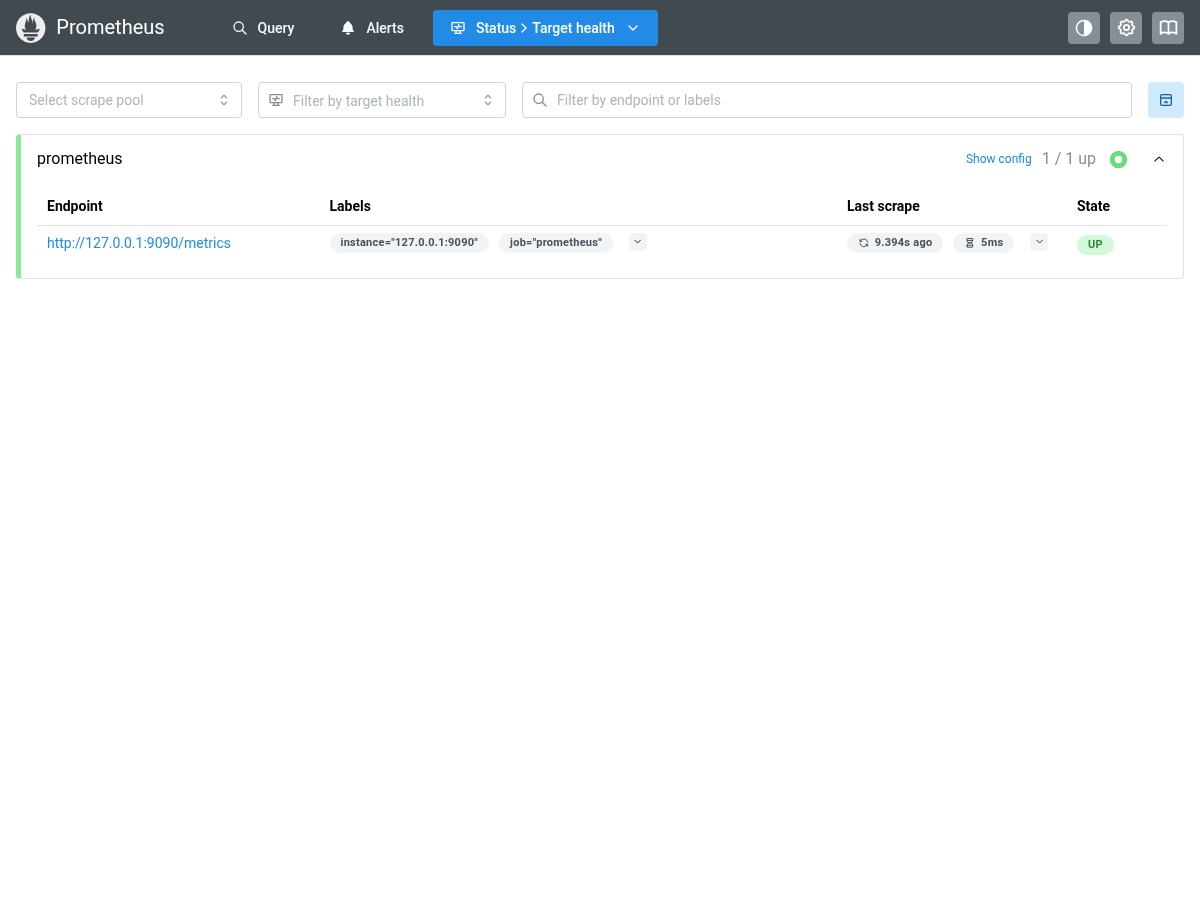
Open the targets page in a browser:
http://127.0.0.1:9090/targets. Theprometheusjob must be UP. One scrape interval is 15 seconds. Refresh once if the page still says unknown.
Step 4 — Add a down target
A board that only shows UP does not prove a down target would appear. Add a name that must not answer.
-
Stay in
$HOME/lab-dash. Replaceprometheus.ymlwith both jobs. Do not append a fragment. YAML indent is part of the file.cat > prometheus.yml <<'EOF' global: scrape_interval: 15s scrape_configs: - job_name: prometheus static_configs: - targets: ["localhost:9090"] - job_name: nonsense static_configs: - targets: ["no-such-host.example.lab:9100"] EOF -
Reload Prometheus. The lifecycle flag in compose is what allows this POST. Do not restart unless the reload is refused.
curl -fsS -o /dev/null -w '%{http_code}\n' -X POST http://127.0.0.1:9090/-/reloadExpected:
200A non-200 means the file did not load. Fix the indent and POST again.
-
Wait one scrape interval, then reload the targets page:
http://127.0.0.1:9090/targets.sleep 15 curl -sS 'http://127.0.0.1:9090/api/v1/query?query=up'Expected:
"status":"success". A series with"job":"prometheus"and value"1". A series with"job":"nonsense"and value"0". On the targets page,prometheusis UP andnonsenseis DOWN.
Step 5 — Point Grafana at Prometheus
Grafana graphs the scrape. Inside Compose, Prometheus is the service name prometheus. Loopback inside the Grafana container is Grafana, not Prometheus.
-
Open Grafana:
http://127.0.0.1:3000. -
Sign in. Username is
admin. Password is the value you put ingrafana.env. -
If Grafana asks you to change the password, click Skip, or set a new one and write that same value back into
grafana.env. -
Left sidebar: Connections → Data sources → Add new data source.
-
Choose Prometheus.
-
In Prometheus server URL, type:
http://prometheus:9090Do not use
http://127.0.0.1:9090here. -
Scroll to the bottom. Click Save & test. Expected: a green success, wording like
Successfully queried the Prometheus API. -
Left sidebar: Explore (compass). Data source: Prometheus. In the metric field, type
up. Click Run query.Expected: two series.
job="prometheus"at 1.job="nonsense"at 0.
Verification
curl -sS -o /dev/null -w '%{http_code}\n' http://127.0.0.1:9090/-/ready
Expected:
200
curl -sS 'http://127.0.0.1:9090/api/v1/query?query=up'
Expected: "status":"success", a series with "job":"prometheus" and value "1", and a series with "job":"nonsense" and value "0". Grafana Explore shows the same up series.
If a container exits, docker compose logs prometheus and docker compose logs grafana are the logs. There is no installer log file.
Next
Add a Homepage (or any link portal) at home.example.lab after the targets page is honest. Probe a name you already trust, such as https://vault.example.lab/alive, only after the self-scrape stays up. The portal link to Grafana is a convenience. It is not the prove.