Install a lab Vaultwarden
Done: Vaultwarden answers on vault.example.lab, /alive returns a timestamp, and new signups are refused.
Requirements
Vaultwarden speaks the Bitwarden API. It holds passwords, API tokens, SSH keys, and notes. Put it on the lab LAN. Terminate TLS on the vault host. This is lab. It is not a production secrets design.
Change the example names. Do not use them as live names.
| Name | Change it | Role |
|---|---|---|
vault.example.lab |
yes | HTTPS name clients use. TLS checks this name |
/opt/vaultwarden |
yes | Stack directory on the vault guest |
./vw-data |
path stays relative | The vault. Snapshot this directory. Do not print its contents |
| Item | Need |
|---|---|
| Guest | A Linux guest on the lab LAN. Docker Engine and the Compose plugin |
| Hostname | vault.example.lab in /etc/hostname and in lab DNS. Clients use the name. A bare address fails the TLS check |
| Disk | Room for vw-data (SQLite, attachments, config). The data directory is the vault |
| TLS | A certificate for vault.example.lab on this guest. Do not publish the admin page to the internet |
| Break-glass | Vault password and admin token copied offline before you depend on the vault. If the vault is down, you cannot ask the vault for the vault password |
| Service | Port | Protocol | Notes |
|---|---|---|---|
| Vaultwarden (container) | 80 | TCP | Compose network only. Do not publish this port |
| Caddy / web vault | 443 | TCP | Lab hostname HTTPS. Clients hit this |
| Admin | — | — | Do not publish /admin off the lab LAN |
| Variable | First boot | After the first account |
|---|---|---|
DOMAIN |
https://vault.example.lab |
unchanged |
SIGNUPS_ALLOWED |
true |
false |
INVITATIONS_ALLOWED |
true |
false |
ADMIN_TOKEN |
generate locally; put it in the env file | unchanged; never in this page |
Procedure
1. Name the host and the disk
Clients check the TLS name. Set the hostname and the stack directory before compose.
- On the vault guest, as root, set the name and the directory:
# hostnamectl hostname vault.example.lab # hostname # expect: vault.example.lab # install -d -m 755 /opt/vaultwarden # cd /opt/vaultwarden - Generate the admin token. Put the value in
.envlater. Keep a copy offline. Do not print it here.# umask 077 # openssl rand -base64 48 > .admin-token # chmod 600 .admin-token # test -s .admin-token && echo admin-token-present # expect: admin-token-present - Point lab DNS at this guest for
vault.example.lab. This page does not print the address. See the Pi-hole guide for the fleet DNS record. Clients use the name. A bare address fails the TLS check.
2. Write compose and Caddy
Compose plus Caddy on the same guest is the lab path. TLS terminates here.
- Stay in
/opt/vaultwarden. Write.env. Paste the admin token from.admin-tokenonto theADMIN_TOKENline. Leave signups on for the first account.# cd /opt/vaultwarden # cat > .env <<'EOF' DOMAIN=https://vault.example.lab SIGNUPS_ALLOWED=true INVITATIONS_ALLOWED=true # ADMIN_TOKEN=<paste from .admin-token, then chmod 600 .env> EOF # chmod 600 .env - Write
compose.yml. Do not put the admin token in this file. Load it from.env. Do not publish container port 80.# compose.yml services: vaultwarden: image: vaultwarden/server:latest container_name: vaultwarden restart: unless-stopped env_file: - .env environment: DOMAIN: "https://vault.example.lab" SIGNUPS_ALLOWED: "true" INVITATIONS_ALLOWED: "true" volumes: - ./vw-data:/data caddy: image: caddy:2 container_name: vaultwarden-caddy restart: unless-stopped depends_on: - vaultwarden ports: - "443:443" volumes: - ./Caddyfile:/etc/caddy/Caddyfile:ro - ./caddy-data:/data - ./caddy-config:/config - ./certs:/etc/caddy/certs:ro - Write the Caddyfile. Substitute
vault.example.lab.# Caddyfile — TLS on this guest. Put the lab cert under ./certs/ vault.example.lab { tls /etc/caddy/certs/vault.example.lab.pem /etc/caddy/certs/vault.example.lab-key.pem reverse_proxy vaultwarden:80 { header_up X-Real-IP {remote_host} } } - Copy the certificate and key for
vault.example.labinto./certs/. This page does not mint the cert. Use the same CA your other lab names use.# install -d -m 700 /opt/vaultwarden/certs # install -m 644 /path/to/vault.example.lab.pem /opt/vaultwarden/certs/vault.example.lab.pem # install -m 600 /path/to/vault.example.lab-key.pem /opt/vaultwarden/certs/vault.example.lab-key.pem # ls -l /opt/vaultwarden/certs # expect: pem and key present; key mode 600
3. Start the stack and create the first account
The first account is the bootstrap. Create it while signups are still on.
- Confirm Compose v2 is on the guest, then start the stack:
# docker compose version # expect: Docker Compose version v2.x # cd /opt/vaultwarden # docker compose up -d # docker compose ps # expect: vaultwarden Up, vaultwarden-caddy Up - Open
https://vault.example.lab. Expect the web vault, not a TLS name mismatch. - Click Create account. Enter an email and a master password. Submit. Do not put that password in this page. Keep a break-glass copy offline.
- Sign in if the page sends you back to login. Confirm the vault opens.
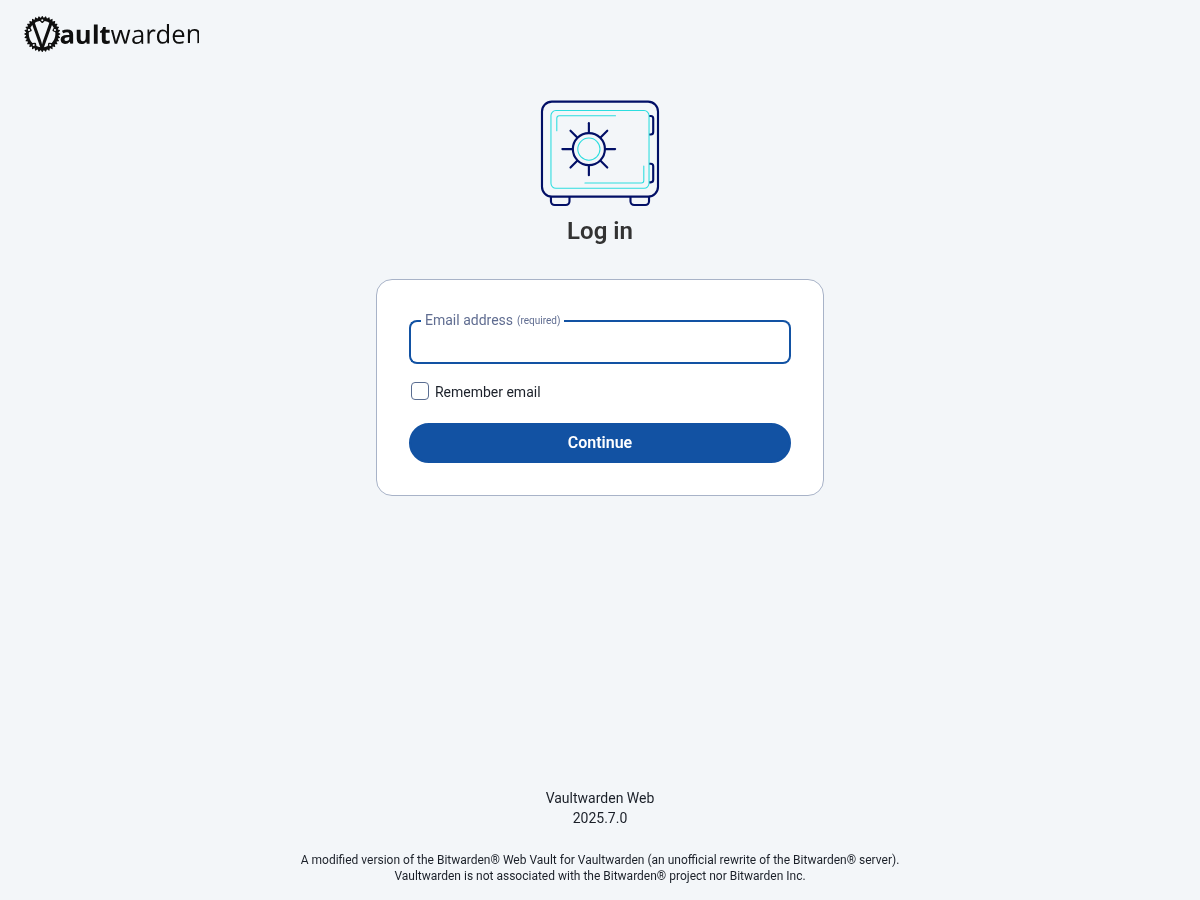
- The picture below is the login page from a disposable sandbox, not the lab vault.
4. Lock registration
Anyone who can reach the name can create an account until you turn signups off.
- Open
.envand theenvironment:block incompose.yml. Change only these two lines. LeaveDOMAINandADMIN_TOKENalone.SIGNUPS_ALLOWED=false INVITATIONS_ALLOWED=false - Recreate the vault container so it reads the new flags:
# cd /opt/vaultwarden # docker compose up -d --force-recreate vaultwarden # docker compose ps # expect: vaultwarden Up, vaultwarden-caddy Up - Prove a new signup is refused:
# curl -sS -o /dev/null -w '%{http_code}\n' -X POST \ https://vault.example.lab/identity/accounts/register # expect: 400 - The admin panel uses a separate token from the day-to-day account. It lives in the env file, not in this guide.
5. Snapshot before you change it
The data directory is the vault. Snapshot the guest before a rebuild or a version jump.
- Confirm the data directory exists after the first login:
# ls -ld /opt/vaultwarden/vw-data # expect: a directory, not empty - Put this guest on the lab backup store. See the PBS guide. A restore you have booted is the prove. A green backup-job line is a wish.
- Do not practice restore against the live data directory. Do not restore over the live vault VMID.
Verification
$ curl -fsS https://vault.example.lab/alive
# expect: a timestamp, nothing else
# example: "2026-10-04T15:00:00.000000000Z"

$ curl -sS -o /dev/null -w '%{http_code}\n' https://vault.example.lab/
# expect: 200

$ curl -sS -o /dev/null -w '%{http_code}\n' -X POST \
  https://vault.example.lab/identity/accounts/register
# expect: 400 (registration not allowed)
Done when /alive returns a timestamp, the web vault loads on the lab name, and a new signup is refused.
The stack writes logs with docker compose logs vaultwarden from /opt/vaultwarden. The vault itself is ./vw-data.
Next
Put this guest on the PBS daily job before a version jump. Prove restore on a scratch copy, not on the live data directory. See the PBS guide.