Keycloak lab SSO — federate and prove the issuer
Done: Keycloak realm lab answers on the TLS edge, federates FreeIPA read-only, and you did not bounce compose to make the check pass.
Requirements
This page checks a Keycloak guest that is already up. It does not clone a guest or run compose as a health check.
Hardware
- An existing Keycloak guest with postgres and keycloak in compose.
- An existing FreeIPA primary. Keycloak reads it. It does not store a second password.
- A TLS reverse proxy. Browsers hit the edge, not the guest backend port.
- A jump host that can reach the edge and the guest.
OS
- Jump host with
dig,curl,jq, andnc. - Keycloak guest with Docker Compose at
/opt/keycloak. Change the path if yours differs.
Names — change these
| Placeholder | Change it | Role |
|---|---|---|
keycloak.example.lab |
Yes | Public name. Points at the TLS edge, not the guest |
ipa.example.lab |
Yes | FreeIPA primary for LDAP |
dns-path.example.lab |
Yes | Fleet DNS that clients query |
lab |
Yes, if your app realm differs | App realm. Keep master for break-glass admin |
freeipa-ldap |
Yes, if the federation name differs | User federation |
dc=idm,dc=example,dc=lab |
Yes | LDAP suffix. Match the IPA domain |
People/hosts (ipa.example.lab)
        ↓ LDAP federation (read-only bind)
Keycloak realm lab (OIDC issuer)
        ↓ OIDC
Apps (Forgejo Sign in with Keycloak)
        ↑ HTTPS
TLS reverse proxy → keycloak.example.lab
DNS
keycloak.example.labresolves throughdns-path.example.labto the TLS edge.- Resolve
ipa.example.labto the current FreeIPA face. Not a retired address.
Ports
| Service | Port | Protocol | Notes |
|---|---|---|---|
| Issuer | 443 | TCP | https://keycloak.example.lab/realms/lab |
| Admin console | 443 | TCP | /admin/ — lab/edge only |
| Compose backend | 8080 | TCP | HTTP on the guest, lab LAN only |
| LDAP | 389 | TCP | Keycloak guest to ipa.example.lab |
| LDAPS | 636 | TCP | Keycloak guest to ipa.example.lab |
Packages and compose
| Where | What | Notes |
|---|---|---|
| Jump host | dig, curl, jq, nc |
Read-only check |
| Keycloak guest | compose services keycloak and postgres |
Pattern /opt/keycloak |
Federation
| Field | Value | Change it |
|---|---|---|
| Issuer | https://keycloak.example.lab/realms/lab |
Yes — host and realm |
| Discovery | https://keycloak.example.lab/realms/lab/.well-known/openid-configuration |
Yes |
| Vendor | FreeIPA / RHDS-compatible | No |
| Edit mode | READ_ONLY |
No |
| Users DN | cn=users,cn=accounts,dc=idm,dc=example,dc=lab |
Yes — dc components |
| Bind DN | uid=keycloak-ldap,cn=users,cn=accounts,dc=idm,dc=example,dc=lab |
Yes — a service user, not IPA admin |
Procedure
Step 1 — Open the admin console
This step exists because a browser on guest port 8080 is the backend, not the admin console the TLS edge serves, and because a healthy guest is a check, not a compose bounce.
-
If
keycloak.example.labalready answers, leave the install alone. Do not clone a guest, bounce compose, rewrite the hostname URL env, or move the TLS proxy to make this check pass. -
Open the admin URL in a browser. Use the TLS name, not
:8080.https://keycloak.example.lab/admin/Worked when the browser redirects into a login form. Do not publish admin.
-
Sign in as the break-glass admin for realm
master. The form asks:Username: admin Password: (the break-glass admin password from install)Type those values. This is not an IPA user unless you already wired that.
-
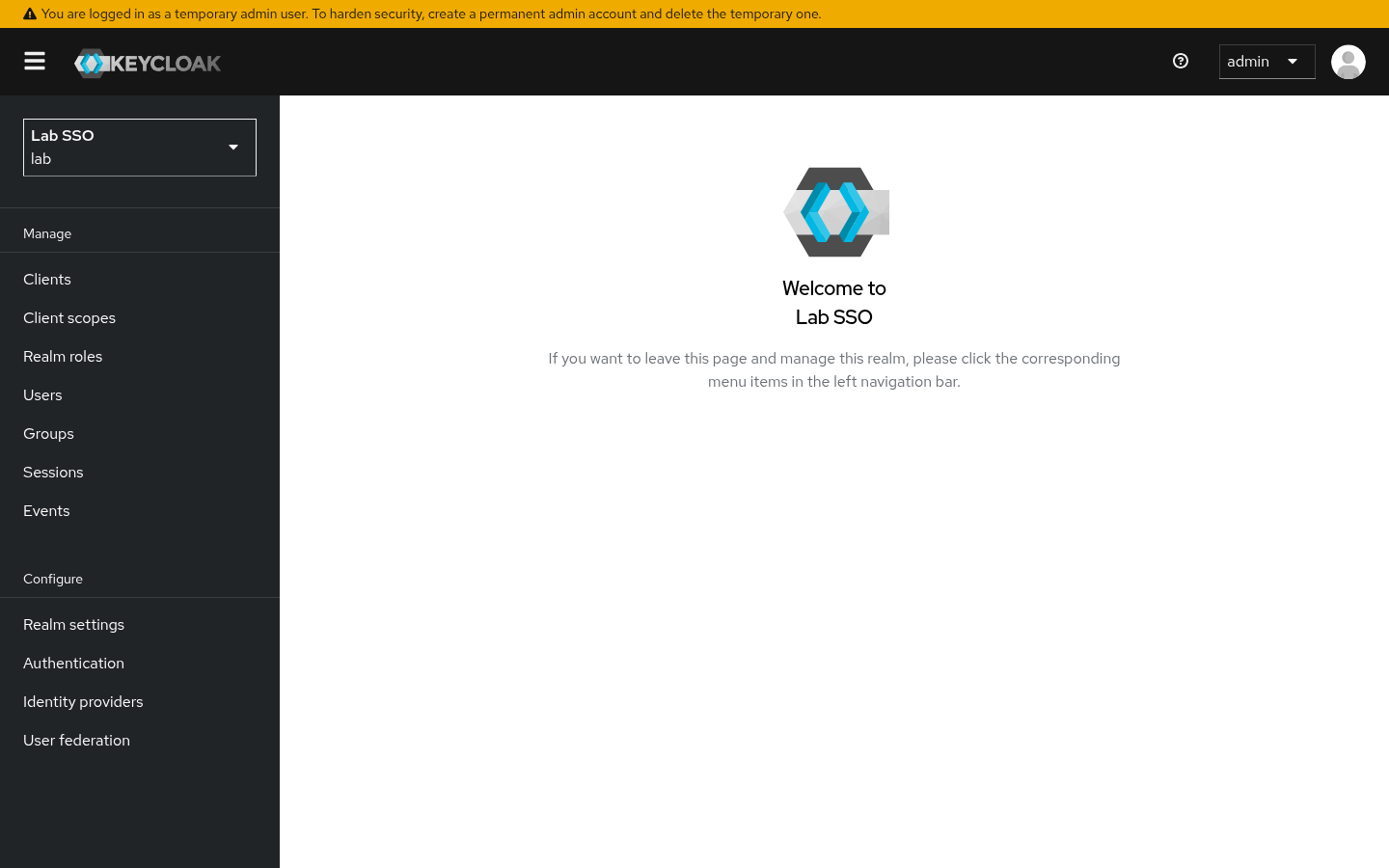
In the top-left realm menu, choose
lab. Do not stay inmaster.Worked when the overview for realm
labloads. -
From the jump host, ask the same admin URL for its status code.
curl -sk -o /dev/null -w 'admin:%{http_code}\n' \
  https://keycloak.example.lab/admin/
Worked when:
admin:302
Step 2 — Confirm LDAP federation
This step exists because the issuer can answer while LDAP to FreeIPA is down, and because a writable federation would store passwords in Keycloak.
-
Stay in realm
lab. In the left menu, open User federation.Worked when the list shows
freeipa-ldap. Change that name if yours differs. -
Open
freeipa-ldap.Worked when the settings page loads. Do not click Save if you did not change anything.
-
Read Vendor. Worked when it is FreeIPA / RHDS-compatible.
-
Read Edit mode. Worked when it is
READ_ONLY. -
Read Users DN. Worked when it matches the table:
cn=users,cn=accounts,dc=idm,dc=example,dc=lab -
Read Bind DN. Worked when it is a service user, not IPA admin:
uid=keycloak-ldap,cn=users,cn=accounts,dc=idm,dc=example,dc=labThe bind password stays on the guest. Leave that field alone.
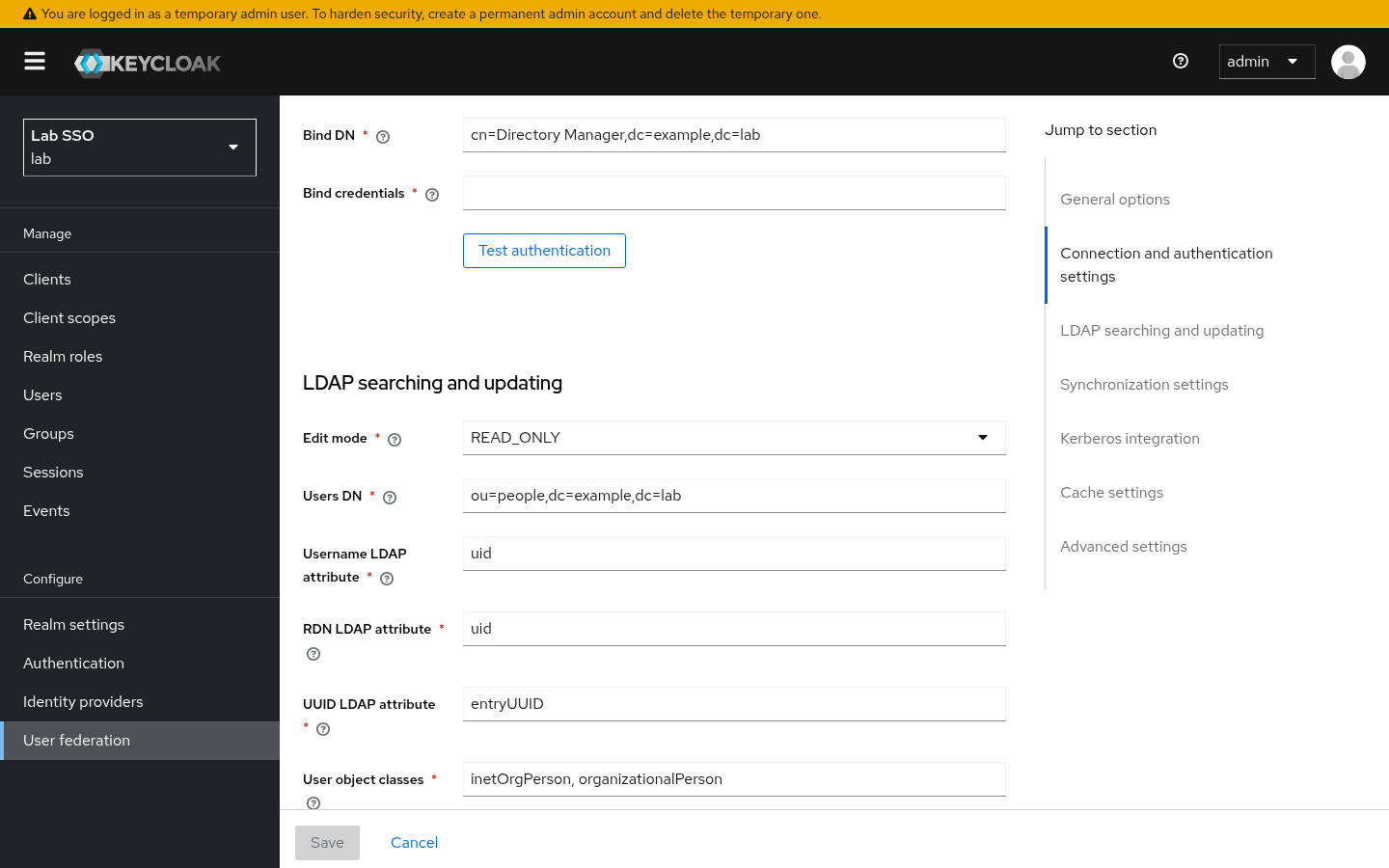
LDAP user federation — Bind DN and Users DN (example.lab; bind credentials empty). -
SSH to the Keycloak guest. Check LDAP reachability from there, not only from the jump host. The guest is the LDAP client.
nc -zv ipa.example.lab 389Worked when:
Connection to ipa.example.lab 389 port [tcp/ldap] succeeded! -
Check LDAPS the same way.
nc -zv ipa.example.lab 636Worked when:
Connection to ipa.example.lab 636 port [tcp/ldaps] succeeded!
Step 3 — Check the issuer
This step exists because a 302 on /admin/ is not the app issuer, and discovery must print the HTTPS realm URL apps will use.
-
From the jump host, resolve the public name through fleet DNS.
dig @dns-path.example.lab keycloak.example.lab +shortWorked when you get the current TLS-edge A, not a retired address. Shape:
192.0.2.20 -
Ask the realm issuer for its status code. Substitute your names.
curl -sk -o /dev/null -w 'issuer:%{http_code}\n' \
  https://keycloak.example.lab/realms/lab
Worked when:
issuer:200 -
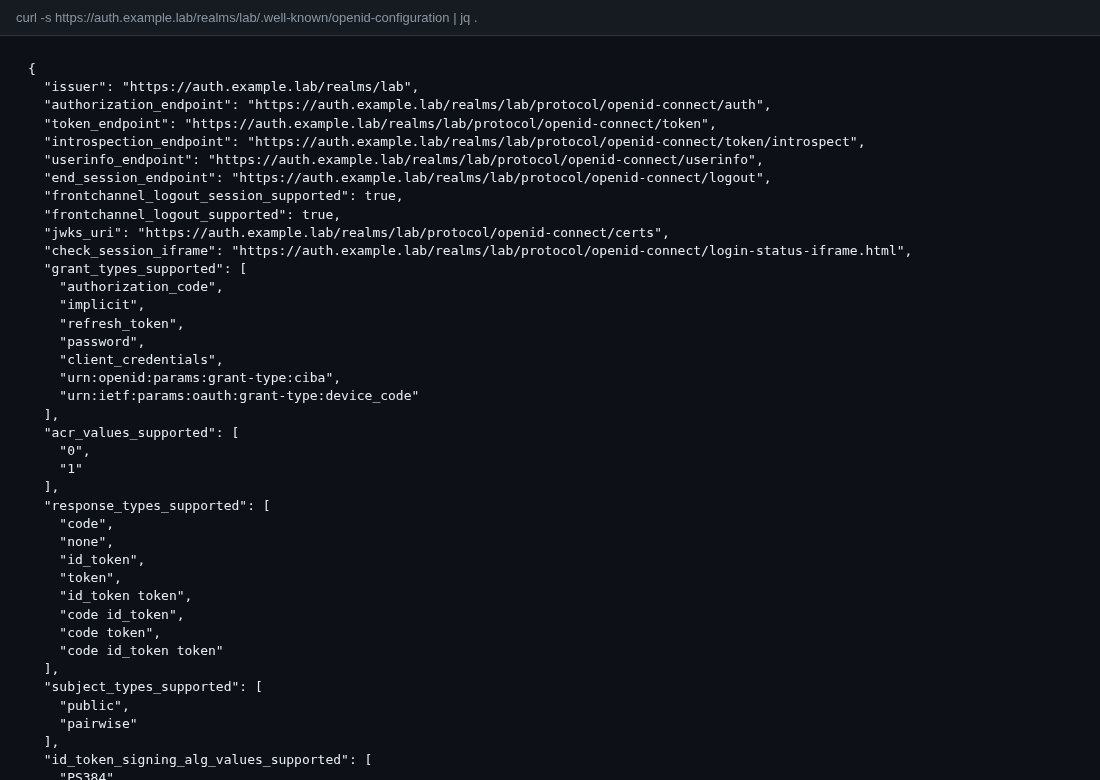
Read the issuer field from OpenID discovery.
curl -sk https://keycloak.example.lab/realms/lab/.well-known/openid-configuration \
  | jq -r .issuer
Worked when:
https://keycloak.example.lab/realms/lab -
On the Keycloak guest, check compose. Do not restart it.
cd /opt/keycloak && docker compose psWorked when
keycloakandpostgresshow Up. Shape:NAME SERVICE STATUS keycloak-postgres-1 postgres Up keycloak-keycloak-1 keycloak UpMetadata may still advertise the HTTPS issuer while the backend is HTTP. That is fine.
Step 4 — Confirm the app client
This step exists because Forgejo will not redirect until the client redirect URI is the app’s public HTTPS URL through the TLS edge, not the raw backend address.
-
Stay in realm
lab. In the left menu, open Clients.Worked when the client list loads.
-
Open the
openid-connectclient for the app. Forgejo is the documented third piece. The client id in this pattern isforgejo. Change it if yours differs. Do not create a new client on a healthy guest. -
Open the Settings tab. Read Valid redirect URIs.
Worked when the URI is the app’s public HTTPS callback through the TLS edge, not the raw backend. Shape:
https://git.example.lab/user/oauth2/Keycloak/callback -
Read Web origins.
Worked when the origin is the app’s public HTTPS URL through the TLS edge. Shape:
https://git.example.labShot missing — Keycloak Clients page for the Forgejo openid-connect client was not captured. Valid redirect URIs and Web origins were not opened for a picture.Keycloak Clients — Forgejo openid-connect client (Valid redirect URIs and Web origins). Shot missing. -
Point the app at issuer
https://keycloak.example.lab/realms/lab. The sign-in button and redirect check live in the SSO path guide. Do not runforgejo admin auth add-oauthon a healthy Git guest as a health check.
Verification
$ dig @dns-path.example.lab keycloak.example.lab +short
# expect: current TLS-edge A — not a retired name

$ curl -sk -o /dev/null -w 'issuer:%{http_code}\n' \
  https://keycloak.example.lab/realms/lab
issuer:200

$ curl -sk https://keycloak.example.lab/realms/lab/.well-known/openid-configuration \
  | jq -r .issuer
https://keycloak.example.lab/realms/lab
This check writes no install log.
Next
Prove Forgejo hands the browser to this issuer, then stop at the redirect. See the lab SSO path guide.